Castle Defence
Powered by P5.js
Castle Defence
Instructions:
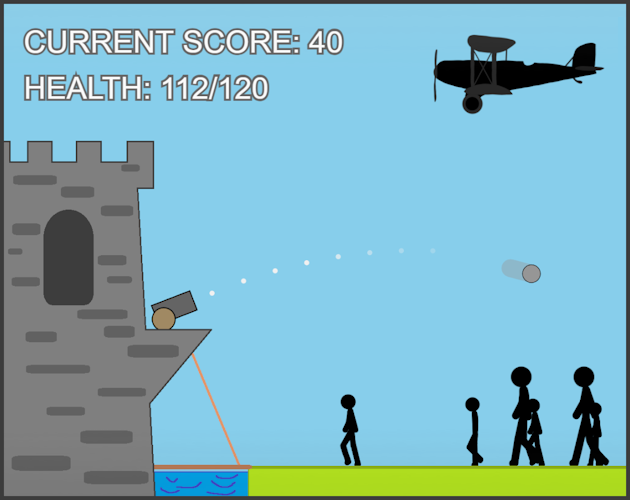
- You are protecting a castle with a movable cannon. Your goal is to defeat as many enemies as possible without dying to get the highest score. Determine the cannon angle and distance using your mouse. Once you have initiated a shot hit all reward zones in the power circle to do more damage.
Controls/Cheats:
- Simulate Main Button Click: ' ' (AKA Space) or 'F'
- Toggle Pause: 'P'
- Debug Shoot: '|' (AKA Shift + '\')
- Debug Lose: '}' (AKA Shift + ']')
- Debug Reset: '{' (AKA Shift + '[')
The following instructions are useless:
This game is meant to be played using MariaDB, Python Flask, Nginx, Docker and a connected physical controller (ESP32), all of these functionalities have been disabled and/or completely removed for this upload.
General Setup
To set up the game for playing, you will first need to connect to localhost (or 127.0.0.1) in your browser.
To connect the physical controller to the game:
- Plug a USB-C cable into the rightmost port (COM) when its opening is pointed at you.
- Locate the "Connect Port" button in the top left corner of the browser page. If the controller has successfully connected to the computer, then you may find and click the correct port for the controller in the list that appears. Its name usually includes the words "USB Single Serial".
- You may confirm that the connection is working by looking for the "Connected to serial port" confirmation message in the browser's console and/or simply rotating the potentiometer.
To activate the game's connection to the database for purposes of tracking the leaderboard scores and usage statistics:
- Locate the "Toggle Database" button in the top left corner of the browser page and click it.
- You may confirm that the connection is working by looking for the "Database enabled set to: true" confirmation message in the browser's console and/or simply seeing whether the leaderboard's contents update to show any scores.
- When you have set up both the controller and database, you may click the "Delete Buttons" button in the top left corner to hide all setup buttons permanently (until you refresh the page).
Controller Hardware Setup
Each Component and its connections to the ESP32:
- Potentiometer with rear view from left to right is GND, data(pin 2), 3V3
- Ultrasonic Sensor with rear view from left to right is GND, ECHO(pin 10), TRIG(pin 9), 3V3
- Push button 1 side to the 3V3 and other side to pin 4
Leave a comment
Log in with itch.io to leave a comment.